
Product instructions · Reviewed November 5, 2026
Create a whiteboard video in Touchbase.
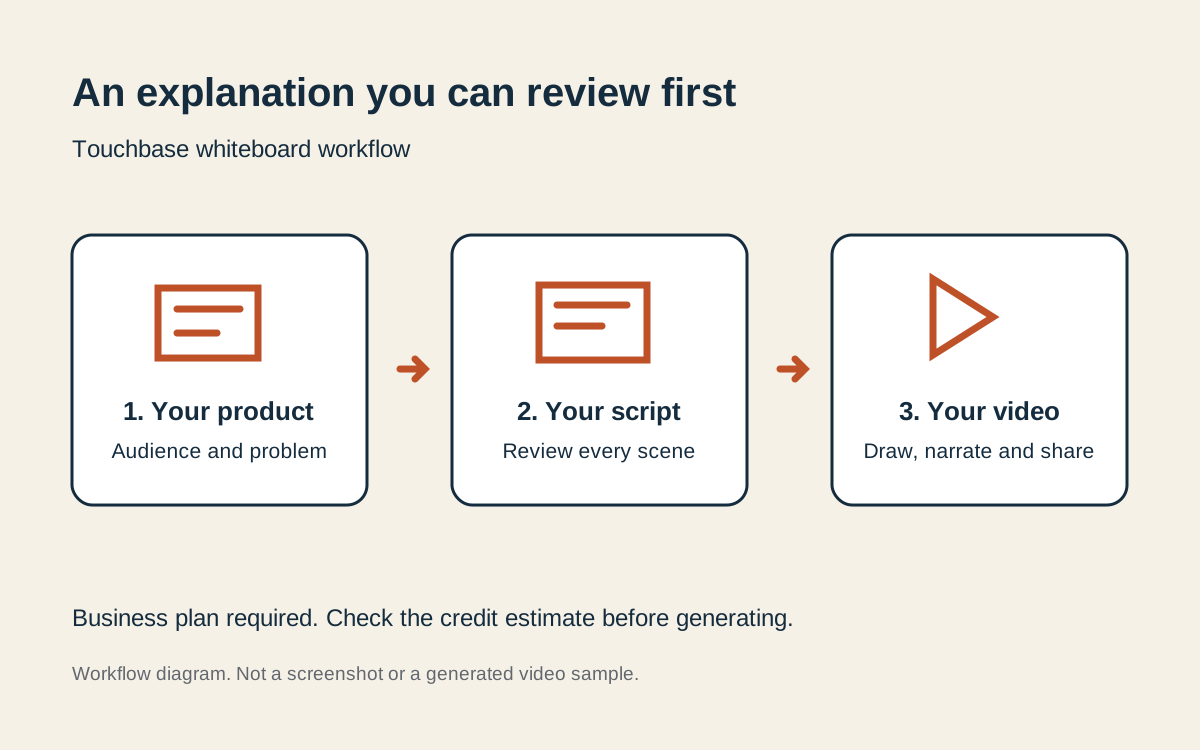
Start with your product’s customer problem. Review the words before paying to draw and narrate them.
Before you start
Whiteboard video generation requires Business or a higher eligible plan. It is separate from the screen recorder available on Free. Open Settings → Products and confirm the actual product name, description and audience. A generic entry such as “software” is not enough to write a useful product-specific script.
1. Open the whiteboard studio
Open Create and choose Whiteboard videos. The composer keeps your brief at the bottom and your scripts and videos above it. Only one video job runs at a time. Wait for the current job before starting another.
2. Choose the product and a useful angle
Open the settings beneath the composer. Keep “Use my saved company profile and product information” enabled and choose the product you want to explain. Check the audience and problem shown there. Change the saved product details if they are wrong.
Write an angle such as “Why small contractors lose track of unpaid invoices.” You can leave the topic blank when a complete product is selected; the system uses your saved context. For an unrelated educational topic, turn the saved-context option off and write a complete brief.
3. Speak instead of typing
Press Dictate and allow microphone access when your browser asks. Speak the angle or brief, then press Stop dictation. Final recognised words are appended to your existing text. The browser’s speech service handles recognition; Touchbase does not store an audio recording of the brief.
Dictation stops after two minutes. The brief accepts up to 2,000 characters. Read the transcript before generating. If the browser does not support speech recognition, try Chrome or Safari, or use your device keyboard’s dictation. Browser support and language accuracy vary.
4. Choose length, format and narrator
Choose a target of 1, 2, 3, 5 or 10 minutes. Vertical fits short social formats; landscape suits a wider player. Select a narrator and use the voice audition control if available. The chosen target guides the script; narration timing is an estimate rather than an exact duration guarantee.
The requested story mix is mostly useful teaching: roughly 80–85% on the customer’s problem and practical solutions, 10–15% on relevant product capabilities, and a short closing action. Review that balance yourself when the script arrives.
5. Read the estimate, then request a script
Check the script and render estimate before pressing Write script. Included allowances remain separate from wallet credit. A video beyond the included duration, or after the included allowance is exhausted, can require credit.
Credit-funded scripts use 20 credits per target minute; video rendering uses 200 credits per minute. At 100 credits per dollar, a credit-funded five-minute script plus render is 1,100 credits ($11). The live quote controls the actual requirement. This is not the separate 500-credit screen-demo processing charge.
6. Review the scenes before rendering
Open a scene to edit its narration. Move scenes up or down, delete an unnecessary scene and check the estimated running time. The script checker points out missing narration and offers editorial suggestions. Suggestions are not proof of factual accuracy.
Check names, numbers, prices and capability claims against your own product. A written script is not a finished video. Press Draw and narrate only after you approve the script and understand the render cost.
7. Watch, download and share
The job shows progress while drawing and narration finish. You can leave the page and return. Finished videos appear in the conversation and Library. Watch the finished result before using its download, sharing or publishing controls.
If something goes wrong
- Product details are missing: correct the product in Settings → Products, then return and select it.
- Not enough credit: use Add credits to open the plan/credit page, complete checkout and return. No top-up is enabled merely by viewing an estimate.
- Script is too long: shorten the narration or create a new job with a longer target and an appropriate budget. Editing cannot bypass the selected duration cap.
- Microphone permission refused: allow access in the browser’s site settings, or type the brief. Dictation starts only when you press its button.
- Another job is active: wait for it to finish. Do not repeatedly submit the same request.
- A render fails: keep the job details and contact support. Refunds and holds follow the job’s billing state; do not assume every successful script charge is refundable.
Choose the right video type
Use a whiteboard video to explain an idea or customer problem. Use a screen demo to show the real interface working. Touchbase does not offer a manual stroke-by-stroke animation timeline or promise a talking-avatar clone.
Start for freeWhiteboard generation requires Business or higher.