
By Touchbase Technologies · Published
Whiteboard explainer or screen demo: which should you make?
Use a whiteboard explainer when a viewer needs to understand a problem, a process or a new idea. Use a screen demo when a viewer needs to see your real product complete a task. If both are necessary, teach the problem first and follow with a short demonstration.
Choosing the wrong format creates avoidable work. A beautifully drawn explanation cannot prove that an integration works. A recording of several dashboard tabs cannot explain why a customer should change an established process. Start with the question your viewer is trying to answer.

Ask what the audience already understands
An audience unfamiliar with the problem needs context. Imagine a small contractor who tracks invoices through messages and a spreadsheet. Before asking them to use a new application, explain how missed reminders create uncertainty about cash flow and what a consistent reminder process would look like.
An audience already looking for invoice software needs different evidence. They want to see an invoice imported, a reminder reviewed and the resulting status. That is an action inside a real interface. Recording the action is more useful than another general story about cash flow.
Write one sentence before opening an editor: “After this video, the viewer should understand or be able to do ___.” If the blank contains an idea, consider an explainer. If it contains a visible action, consider a demonstration.
Build a whiteboard brief around one useful lesson
A workable brief includes the audience, the specific problem, one example and the action you want a viewer to take. Keep a product description separate from the teaching objective so the first half of the video does not turn into a feature list.
For example: “Teach a two-person electrical contractor how to distinguish an overdue invoice from a payment that simply has not cleared. Use one hypothetical invoice and end with a short example of reviewing a reminder.” That is more useful than “Make an amazing video about our software.”
The visuals should carry meaning. Show an invoice moving from sent to due to overdue, rather than adding a decorative character beside every paragraph. The narration should explain what changes and why. If a picture does not help the viewer understand the sentence, simplify it or replace it.
Build a screen demo around one completed action
For a demo, decide where the task begins and ends. Prepare a clean demo workspace with fictional names and non-sensitive records. Hide unrelated notifications and personal browser tabs before recording.
A narrow sequence might show selecting an audience, opening a campaign, reviewing its message and saving the draft. If sending is not part of the demonstration, say that clearly. Do not imply a draft was delivered merely because the interface shows an email design.
Record a short take and watch it immediately. Check whether the cursor makes the next step obvious, whether text is readable and whether the final state proves the promised action. Re-record a confusing section before distributing the video.
How the two Touchbase workflows differ
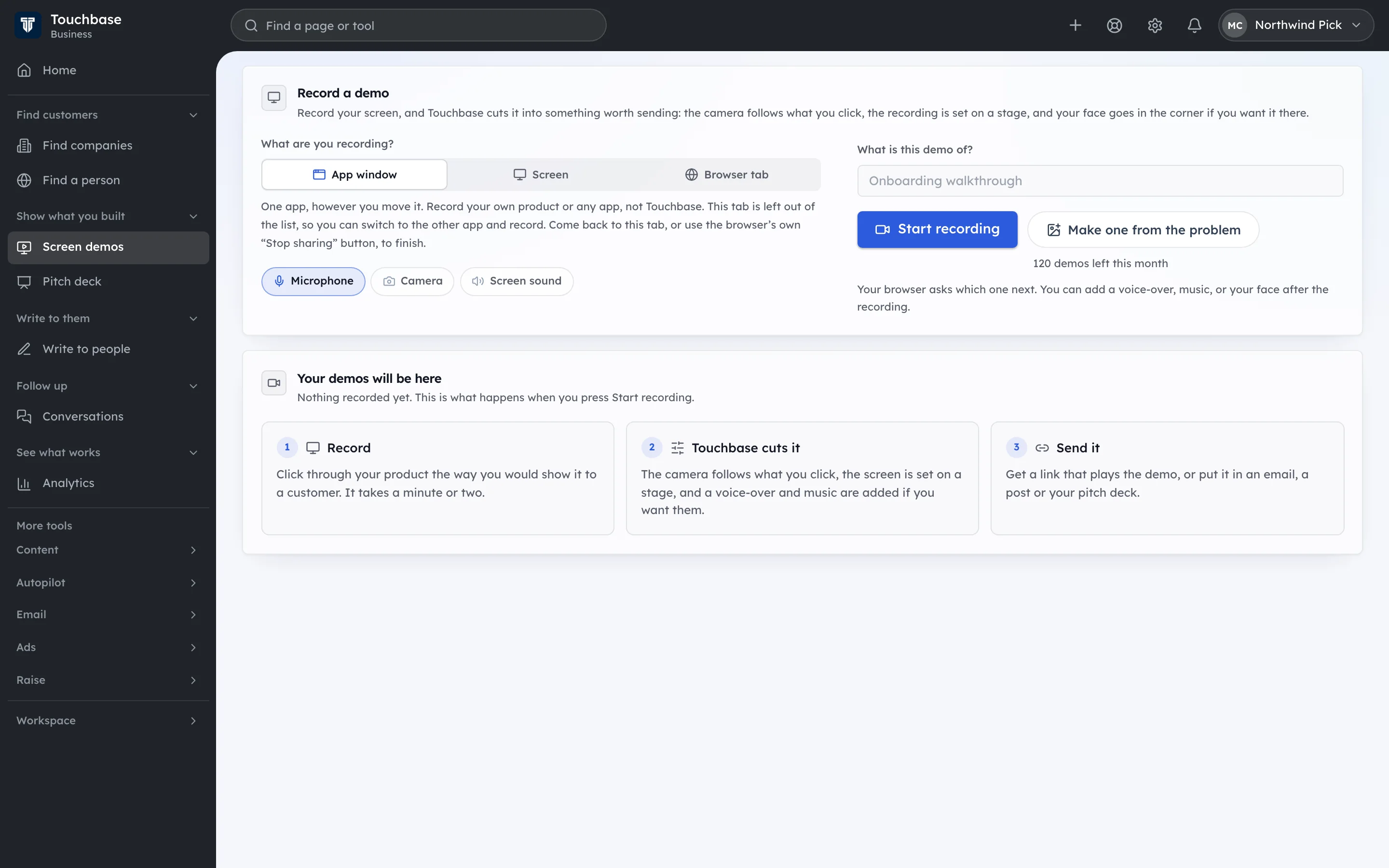
In Touchbase, a screen demo begins with a screen recording. The browser asks which tab, window or display to share. The resulting demo can be shared through the available playback controls. Recording and processing are separate from generating a whiteboard story.
The whiteboard studio begins with your company profile, selected product and a topic or brief. You choose a length, format and narrator, then request a script. Review its scenes before choosing Draw and narrate. Finished videos are kept in the Library.
The product guide documents both workflows. The screen demo feature page and whiteboard instructions explain their respective steps and requirements. These descriptions are based on the current application and plan configuration; they are not a promise that every browser behaves identically.
Understand the cost before making a long version
Touchbase’s Free plan includes one short watermarked screen demo per month. Paid plans have different screen-demo capacities and duration caps. A processed screen demo uses 500 demo credits when the applicable credit allowance is used.
Whiteboard generation requires Business or a higher eligible plan. Business includes a separate whiteboard allowance. Longer targets and work beyond the included allowance may require wallet credit. Credit-funded scripts use 20 credits per target minute and rendering uses 200 credits per minute.
For a credit-funded five-minute whiteboard job, that is 100 script credits plus 1,000 render credits, or 1,100 credits in total. At 100 credits per dollar, the illustration is $11. The live in-app quote remains authoritative, and a script that has been successfully written is a distinct piece of work from a subsequent render.
Check current plans and pricing before starting. Do not interpret “unlimited demo credits” as unlimited whiteboard generation, and do not assume editing a short draft into a much longer script can bypass its duration budget.
Review the words before polishing the pictures
For either format, read the narration aloud. Remove claims you cannot support, unexplained jargon and instructions that assume the viewer already knows your interface. Check that a hypothetical example is labelled as such.
For a whiteboard script, ask whether most of the time teaches the problem and a practical solution. Touchbase’s requested script structure aims for 80–85% useful teaching, 10–15% product relevance and a short closing action. That is a writing direction, not a measured guarantee about every generated script.
For a demo, compare each spoken instruction with what actually happens on screen. “Send the campaign” should not accompany a click on Save draft. Honest, precise narration prevents confusion and makes the video more useful for support as well as marketing.
Combine the formats without repeating yourself
A combined presentation can work well when each part has a clear job. Start with a brief explanation of the customer’s problem and the process that addresses it. Then show the exact part of that process your product handles.
Avoid repeating the entire explanation while recording the screen. A transition such as “Here is what reviewing that reminder looks like” is enough to connect the two. End with one appropriate next step: review your current process, see a longer walkthrough or create an account.
Do not assume every visitor is ready to buy. A useful educational explanation can earn a second visit. A clear demonstration can answer a specific objection. Track which video a prospect watched and the questions they ask afterward rather than treating every view as purchase intent.
Evaluate the finished video with a real viewer
Show the result to someone who does not know the product. Ask them to describe the problem, identify the action shown and explain what they would do next. Do not lead them toward the answers you hoped to hear.
If the explanation is clear but the interface action is confusing, improve the demo. If the clicks are obvious but the reason to care is missing, improve the introduction. This separates an education problem from a production problem and keeps you from rebuilding the wrong part.
Touchbase is a reasonable fit when you want these assets alongside customer research, contacts and outreach. A dedicated animation editor may be better for detailed manual animation control. A specialised video editor may be better for complex footage, colour work or a production that needs a full timeline.
Start for free with Touchbase to explore the available screen-demo allowance. Compare plans if you need narrated whiteboard generation.
Frequently asked questions
Can a whiteboard video replace proof that my software works? No. It can explain the idea, but a real demonstration is stronger evidence of an interface completing a task.
Can I make a ten-minute whiteboard video in Touchbase? The current composer offers targets up to ten minutes on eligible plans. Longer work can require wallet credit; review the estimate and script before rendering.
Should I include real customer records in a marketing demo? Use a demo workspace with fictional or appropriately authorised data. Keep personal information, credentials and unrelated notifications out of the recording.
Prepared with AI assistance and checked against the sources linked in this guide.
Your next step
Get started with Touchbase
Find relevant customers, prepare outreach for review and keep contacts, replies and follow-up connected.
Start for freeStart with a Free account. Upgrade or add credits when you need more capacity. Compare plans